Formatting Data Sources
When assigning text data to a Title, the way the data is displayed can be changed according to advanced formatting rules such as adding or removing decimal places, or displaying
dates and times.
Additional text can also be added before and after if needed.
Format Type
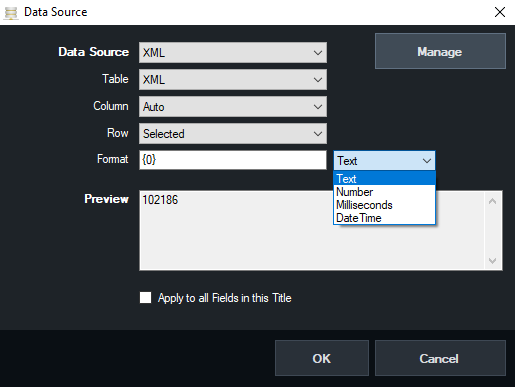
First select the type of data that will be formatted, the options available are Text, Number, Milliseconds and DateTime.
Format String
The format string will determine how the data is displayed, with {0} meaning to display the data as is.
Adding Text before and after
Simply insert {0} in between the text you wish to surround it with. For example Name: {0} for a data source of "Gary" will result in the final string Name: Gary
Number
Numbers are formatted according to the Standard number formatting strings as documented below:
https://learn.microsoft.com/en-us/dotnet/standard/base-types/standard-numeric-format-strings
Some simple examples are provided below:
Round to two decimal places
{0:F2}
Round to zero decimal places
{0:F0}
Display as currency
{0:c}
Milliseconds
Milliseconds formats a number as a Time according to the date and time format strings as documented below:
https://learn.microsoft.com/en-us/dotnet/standard/base-types/custom-date-and-time-format-strings
For example to display the milliseconds number as a duration of minutes and seconds:
{0:mm:ss}
Where mm:ss is the custom date/time format string to use.
DateTime
DateTime formats the input as a Date and/or Time according to the date and time format strings as documented below:
https://learn.microsoft.com/en-us/dotnet/standard/base-types/custom-date-and-time-format-strings
{0:yyyy-MM-dd}
Where yyyy-mm-dd is the custom date/time format string to use.