Camera Sync
Cameras are synchronised relative to each other based on the arrival times as set by the capture card and usually no adjustment is required.
However, when mixing capture card sources with IP sources, there may be a significant delay between cameras.
To compensate for this, the Camera Sync options in Settings can be used to adjust each individual camera relative to the others.
Note that this setting applies to playback only and will not change the underlying recordings or the live previews.
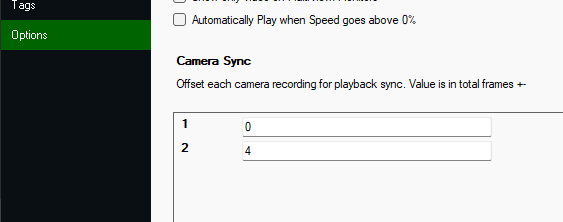
It is strongly recommended that Camera 1 remain at 0, and all other cameras be adjusted relative to that camera.
In the above example Camera 2 is set to a delay of 4 frames relative to Camera 1.
This means on playback, Replay will source a frame 4 frames ahead of Camera 1 to play in Camera 2.
Setting Camera Sync Using Shortcuts
To assist in settings these values visually a shortcut is available.
First, record some footage across all camera angles, preferably with all pointed towards a single clock accurate to the milliseconds.
Next, setup Replay in A|B mode, then select the camera you wish to adjust in channel A and the primary reference camera in channel B.
Setup the following shortcuts on two separate keys or buttons:
1. ReplayMoveSelectedCameraSync with Value of 1
2. ReplayMoveSelectedCameraSync with Value of -1
Press these shortcut keys and note the preview in channel A should be shifting back and forth in frames relative to the camera set in channel B.
Adjust this until sync is achieved.
Finally, go into Settings and check the final value set in Options and then click OK to save the setting.