Import Clips
Custom media can be imported into a spare replay camera channel through the Import Clips feature.
Getting Started
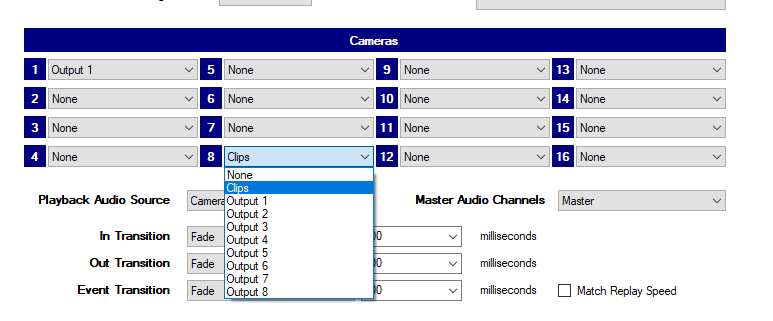
1. Assign a spare replay camera will need to be assigned to "Clips" via the Replay Settings:
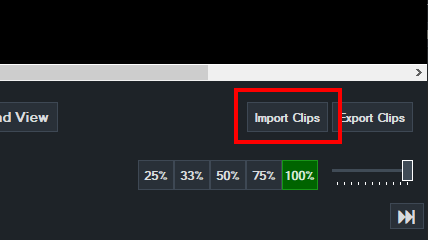
2. Click Import Clips from the main replay window
Import Clips
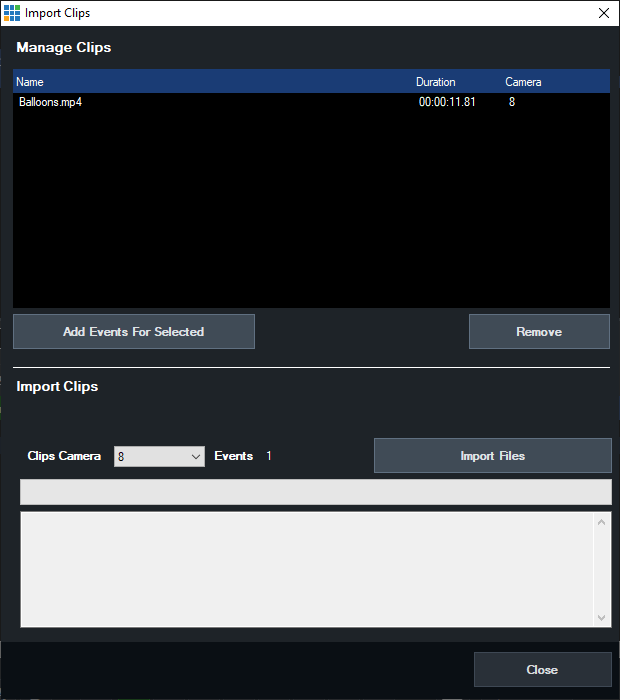
Manage Clips
Previously imported clips will appear in this section.
Add Events for Selected
Create new events in the currently open events tab for the selected media clips. This is handy if the previously added events were deleted or modified.
Remove
This will remove the media from the replay session entirely. Note the original media files that were imported will not be deleted, only the vMix Replay avi files contained within the session for
the selected media file will be removed.
Events that relate to the time period of the media will not be removed and instead may show blank when the media no longer exists.
Import Clips
Click Import Files to browse for standard media files to import (MOV, MP4 etc). Multiple files can be imported at the same time.
Files will be converted/scaled to match the current replay session. Note that if importing a file with a different aspect ratio, it will be stretched to match. Import Files does not support adding black bars
to preserve aspect ratio.
vMix AVI files from other replay productions can be imported and will be kept as is without recompressing. Note that this means they must already match the format of current session and cannot be scaled as a result.
Clips Camera
Select the camera channel previously configured as "Clips" that the media files will be imported into.
The media files will be appended to the end of any previously added clips.
Events
This shows the currently open Events tab in the main interface the imported clip events will be added to.
To import to a different events tab, first change the event in the main interface and open this window again.
Clip Events Timecode
Imported clips will be assigned a timecode starting from the earliest time in the current session with subsequent media appended to the end of the previously added media automatically.
This means clips may appear far in the past compared to the current replay session if the same session is used where older recordings exist.
It is good practice to use the Delete All option before each day's session and the import the clips each time if you do not wish the position bar to extend over multiple hours or even days.